



If you've ever tried to convert PDF to Word without losing formatting, you know the frustration. Columns collapse, fonts swap out, tables fall apart, and bullet points scatter across the page. This isn't a rare edge case - it's one of the most common complaints among anyone who regularly works with documents. The good news is that with the right approach, you can preserve the structure of your original file and get a clean, editable Word document. This guide walks you through exactly how to do that, including what causes formatting to break, which tools actually work, and a concrete example so you can see the process in action.
Content Table
- Why Formatting Breaks During PDF to Word Conversion
- Why Scanned PDFs Convert Badly
- The Best Methods to Convert PDF to Word While Keeping Formatting
- What Can Go Wrong: A Hypothetical Business Report
- Best Practices for a Clean Conversion Every Time
- Troubleshooting PDF to Word Formatting Issues
- How to Check the Converted Word File
- What to Look for in a PDF to Word Converter
Key Takeaways:
- PDF formatting breaks because PDFs store content as fixed visual layouts, not structured text.
- The quality of your conversion depends heavily on whether the PDF is text-based or image-based (scanned).
- Our PDF to Word converter reads the PDF's text layer only, so a scanned PDF needs the OCR PDF tool first.
- A few simple preparation steps before converting can eliminate most formatting problems before they start.
Why Formatting Breaks During PDF to Word Conversion
To fix a problem, it helps to understand why it exists. PDFs are designed to look identical on every device and screen. They store text as positioned elements on a fixed canvas, not as a structured document with paragraphs, styles, and headings. When a converter tries to reverse-engineer that into a Word document, it has to make guesses about what was a heading, what was a table column, and what was a text box.
There are two main types of PDFs, and they behave very differently during conversion:
- Text-based PDFs - These are created directly from Word, InDesign, or another application. The text is embedded as actual characters, so converters can extract it accurately.
- Image-based (scanned) PDFs - These are photos of pages. There is no real text inside, only pixels. A converter needs Optical Character Recognition (OCR) to read them, and OCR introduces its own margin of error.
If you're working with a scanned document, run it through our OCR PDF tool before you start. It will save you a lot of trial and error.
Why Scanned PDFs Convert Badly
A scanned page is a picture, so it holds no characters for a converter to read. A converter that works from the text layer has nothing to rebuild, and the page arrives in Word as an image you can't edit. OCR has to come first: our OCR PDF tool recognizes the words in a scan. Even then, OCR recovers the text, not the layout, so expect to rebuild columns, tables and headings by hand.
The Best Methods to Convert PDF to Word While Keeping Formatting
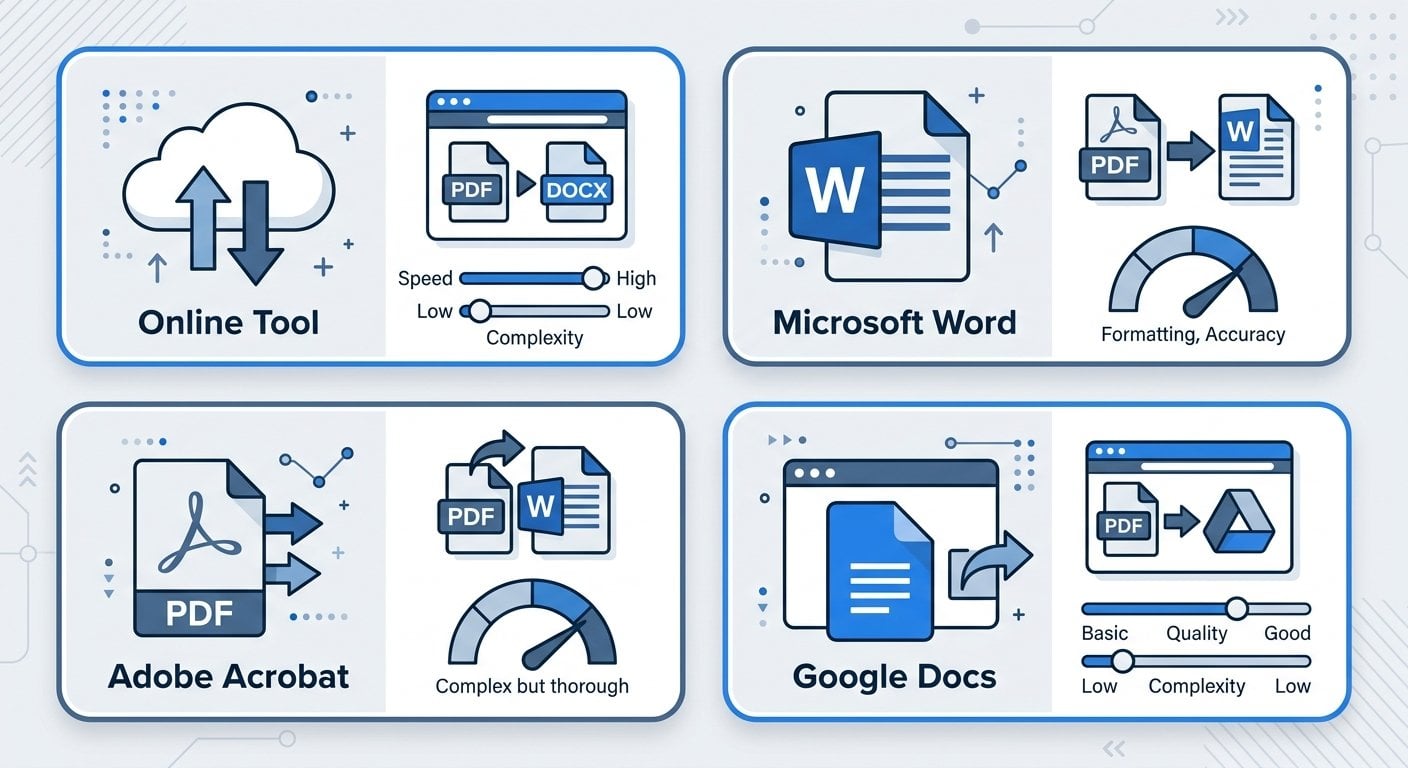
Not all conversion methods are equal. Here's a practical breakdown of your main options.
Option 1: Use a Dedicated Online Converter
Online tools built specifically for PDF-to-Word conversion tend to outperform general-purpose tools. They use more sophisticated parsing engines that can recognize multi-column layouts, embedded tables, and custom fonts. Our PDF to Word converter is built to handle exactly these cases, preserving structure as closely as possible. It reads the text from the PDF's text layer only, so a scan has nothing for it to convert. Run a scanned PDF through OCR PDF first.
Option 2: Use Microsoft Word Directly
Since Word 2013, Microsoft Word has had a built-in PDF import feature. You can open a PDF file directly in Word, and it will attempt a conversion. This works reasonably well for simple, text-heavy documents. However, it struggles with complex layouts, multi-column formats, and anything with heavy graphic elements. It's a useful fallback, but not the best choice for polished documents.
Option 3: Adobe Acrobat
Adobe created the PDF format, and Acrobat's export to Word is often a strong choice for complex PDFs. The downside is that it is paid software. For occasional conversions, that cost can be hard to justify when other tools do the job.
Option 4: Google Docs
You can upload a PDF to Google Drive and open it with Google Docs, which performs an automatic conversion. It handles basic formatting reasonably well but often misses complex table structures and custom fonts. It's a decent free option for simple documents.
What Can Go Wrong: A Hypothetical Business Report
Imagine you have a 12-page quarterly business report in PDF format. It includes a cover page with a logo, a two-column executive summary, three embedded data tables, and a footer with page numbers and a company address.
| Element | Basic Converter Result | Layout-aware Converter Result |
|---|---|---|
| Two-column layout | Merges into one column, text runs together | Two-column layout rebuilt as Word columns |
| Data tables | Flattened into plain text rows | Converted to editable Word tables |
| Logo image | Missing or displaced | Embedded as an inline image |
| Header and footer text | Appears inline with body text | Also lands in the body text and needs moving into Word's header or footer |
| Custom fonts | Replaced with default system font | Font names kept, but a font missing on your computer is substituted by Word |
If you're editing this report and need to update the tables or revise the executive summary, the quality of the conversion directly affects how much manual cleanup you'll need to do afterward. For more on why format choice matters in the first place, see our article on PDF vs Word: which format should you use and when.
Best Practices for a Clean Conversion Every Time
These tips apply regardless of which tool you use. Following them before and after conversion will cut your cleanup time significantly.
- Check if the PDF is text-based first. Open the file and try to select and copy a sentence. If you can highlight individual words, it's text-based. If nothing selects, it's scanned and needs OCR.
- Use the highest-quality source PDF you can find. If you have access to the original document that generated the PDF, use that instead. Converting from the source is always cleaner.
- Avoid converting PDFs with heavy graphics as your primary goal. If the document is mostly images and charts, conversion will be messy. Consider editing the PDF directly instead with our PDF Editor.
- Review the converted document section by section. Don't skim it. Tables, headers, and footers are the most common failure points. Check each one.
- Use Find and Replace to catch encoding errors. Scanned PDFs sometimes introduce odd characters where apostrophes or quotation marks should be. A quick search will catch these.
- Re-apply heading styles in Word after conversion. Even if text lands in the right place, it may not carry the correct paragraph style. Re-applying Heading 1, Heading 2, etc. will restore the document outline and make it easier to navigate.
- Save a copy of the original PDF. Always keep the source file. If something goes wrong in the conversion, you'll want to start over from the original rather than from a corrupted Word file.
If you also work with spreadsheets, the same principles apply when you convert between formats. Our guide on how to convert Excel tables to PDF without losing formatting covers the equivalent challenges in that direction.
Troubleshooting PDF to Word Formatting Issues
Even with a good tool and careful preparation, PDF to Word formatting issues can still appear. Here's how to diagnose and fix the most common ones.
Problem: Text appears in the wrong order
This usually happens with multi-column layouts. The converter reads text left to right across the full page width instead of column by column. Fix this by manually cutting and pasting the text into the correct sequence, or by using a tool that explicitly supports multi-column detection.
Problem: Tables are broken or missing
If a table was created using tab stops rather than actual table formatting in the original document, it may not survive conversion. Rebuild these tables manually in Word using the Insert Table function. It takes a few minutes but gives you a properly structured table you can edit reliably.
Problem: Fonts look wrong
PDFs can embed custom fonts that aren't installed on your system. When the converter can't find the font, it substitutes a default. You can either install the missing font or manually re-apply the correct font in Word. If font accuracy is critical, contact the document's creator for the original file.
Problem: Images are missing or out of place
Images in PDFs are stored separately from text. Some converters don't extract them, or they place them incorrectly. If images are critical, extract them separately with our Extract Images tool, then insert them manually into the converted Word document at the correct position.
Problem: Headers and footers appear in the body text
Some converters treat headers and footers as regular text blocks. After conversion, select this text, cut it, and paste it into the actual Word header or footer section using Insert > Header or Insert > Footer. This is a common issue and easy to fix once you know what to look for.
How to Check the Converted Word File
Before you start editing, give the converted document a quick structural check in Word.
- Turn on Show/Hide ¶. The ¶ button on the Home tab reveals paragraph marks, tabs and manual line breaks, so you can see whether a block is one real paragraph or a stack of separate lines, and whether columns are held together by tabs and spaces.
- Open the Navigation pane. Under View, tick Navigation Pane. It lists every paragraph that uses a heading style. If it is empty, your headings are only bold text and need their styles re-applied.
- Compare side by side. Put the PDF and the Word file next to each other and go through them page by page, checking tables, page breaks and image positions.
- Look for section breaks. With Show/Hide ¶ on, section breaks become visible. They control columns, margins and page orientation, and deleting one makes the text before it take on the formatting of the section after it.
What to Look for in a PDF to Word Converter
Before you upload a file, check the converter against this short list:
- Tables, columns and images. Tables should arrive as editable Word tables, two-column pages as Word columns, and images should stay in the document.
- Scans. Our PDF to Word converter reads the text layer only, so run a scanned PDF through the OCR PDF tool first.
- File size. Our converter accepts files up to 50 MB.
- Privacy. Your file is processed in memory on the server and is never saved to disk.
To see which tools upload your file and which keep it in your browser, read our guide Are online PDF tools safe?

Convert PDF to Word Online
Upload a text-based PDF and get an editable Word document, with tables rebuilt as Word tables and two-column pages as Word columns. Scanned PDFs need OCR PDF first.
Open PDF to Word →
PDFs store content as fixed visual positions on a page, not as structured document elements. When a converter tries to rebuild this as a Word file, it has to guess at the original structure. Complex layouts, custom fonts, and multi-column designs are the most common sources of formatting loss during conversion.
Not reliably. A scan is a picture of a page, so there is no text, table or column to rebuild. OCR (Optical Character Recognition) turns the picture into text, but it returns the words, not the original layout, and handwriting or low-resolution scans need manual correction. LooPDF's PDF to Word converter reads only the PDF's text layer, so a scan arrives as a picture of the page. Run OCR PDF to get the text, then paste it into Word and re-apply the layout.
It depends on the tool. Check whether the converter stores your file and for how long. LooPDF converts on its server, keeps the file in memory without saving it to disk, and deletes it when the conversion finishes. Always read the privacy policy before uploading sensitive documents.
A layout-aware converter rebuilds tables as editable Word tables and two-column pages as Word columns. Check merged cells and pages with more than two columns. Header and footer text usually lands in the page body, so move it into Word's Header and Footer by hand.
Start by reviewing tables, headers, footers, and multi-column sections, which are the most common failure points. Re-apply Word heading styles to restore the document outline. Use Find and Replace to catch stray hyphens and odd characters. For missing images, extract them from the PDF separately and insert them manually at the correct positions.